MyNearStores-Business
MyNearStores - Setup guide
MyNearStores - Setup guide
MyNearStores - Setup guide
MyNearStores is the platform that empowers Merchants to connect with shoppers, offer amazing deals, and grow their customer base. We're passionate about bringing merchants and shoppers together, creating a vibrant community of savings and convenience.
1. Store Management
- Step 1: After logging in, click the "Store" option in the main menu.
- Step 2: You will see two sections: "Add Store" and "All Stores."
1.1. Add Store
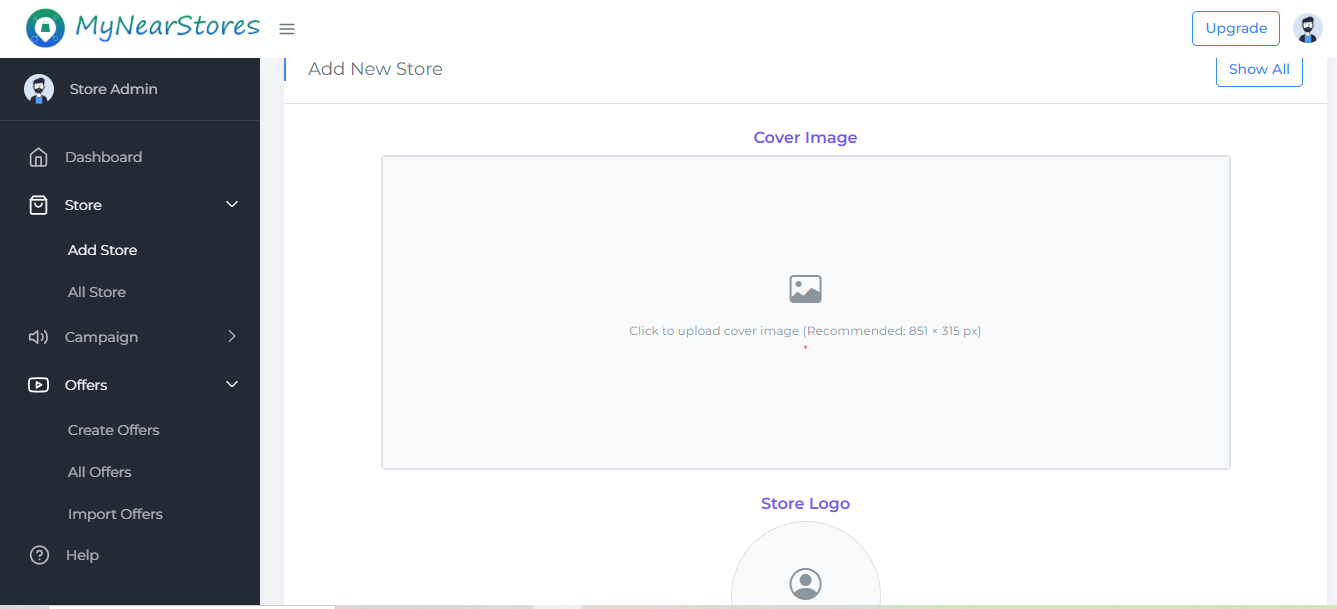
- Step 1: Click the "Add Store" tab.
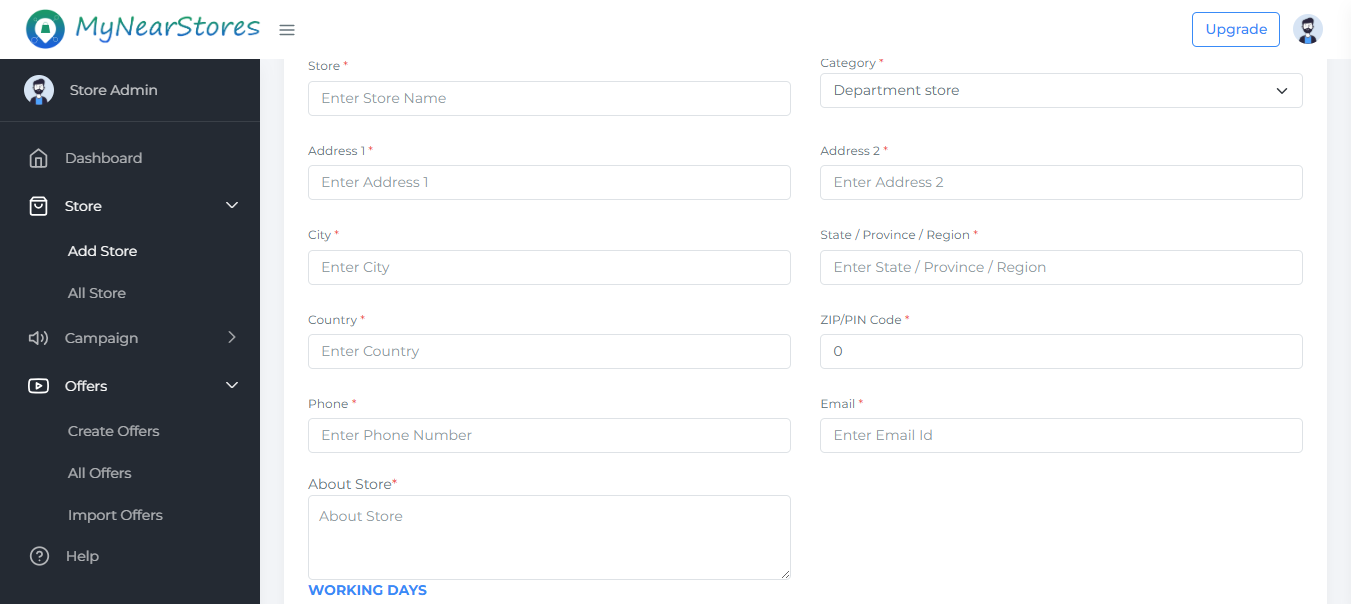
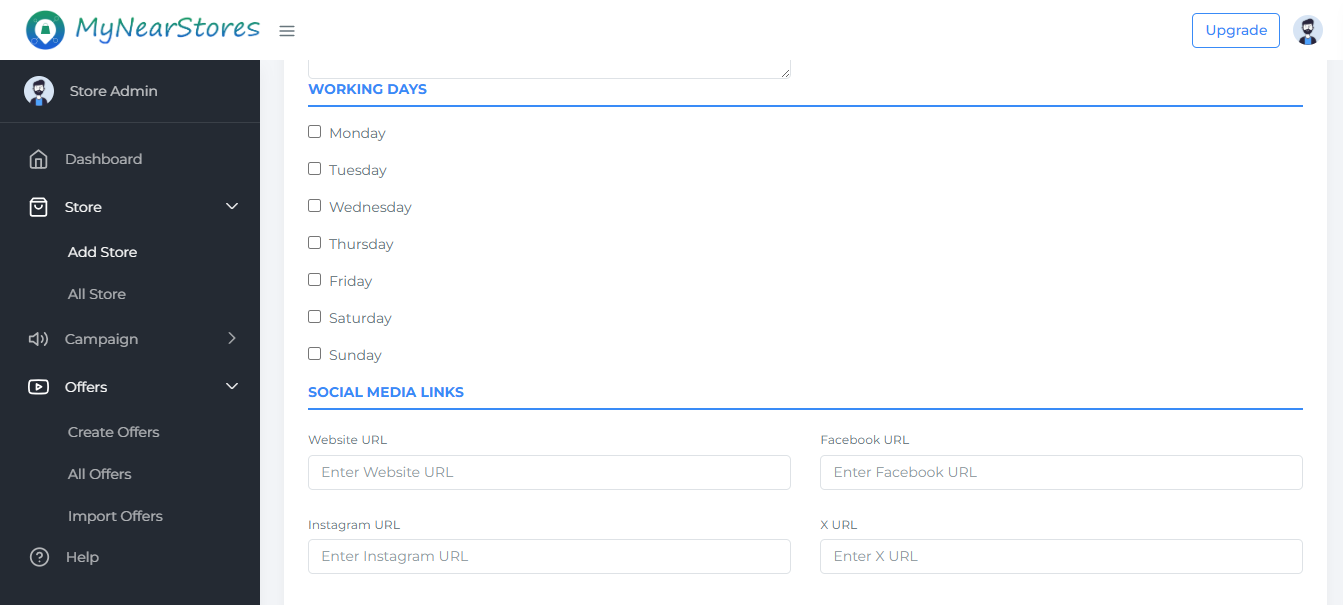
- Step 2: Enter the store's details, such as store name, address, and contact information.
- Step 3: The location details will automatically update based on the entered address.
- Step 4: If necessary, manually modify the location details (latitude, longitude) on the map or via text entry.
- Step 5: Click the "Save" button to store the store details.
1.2. All Stores
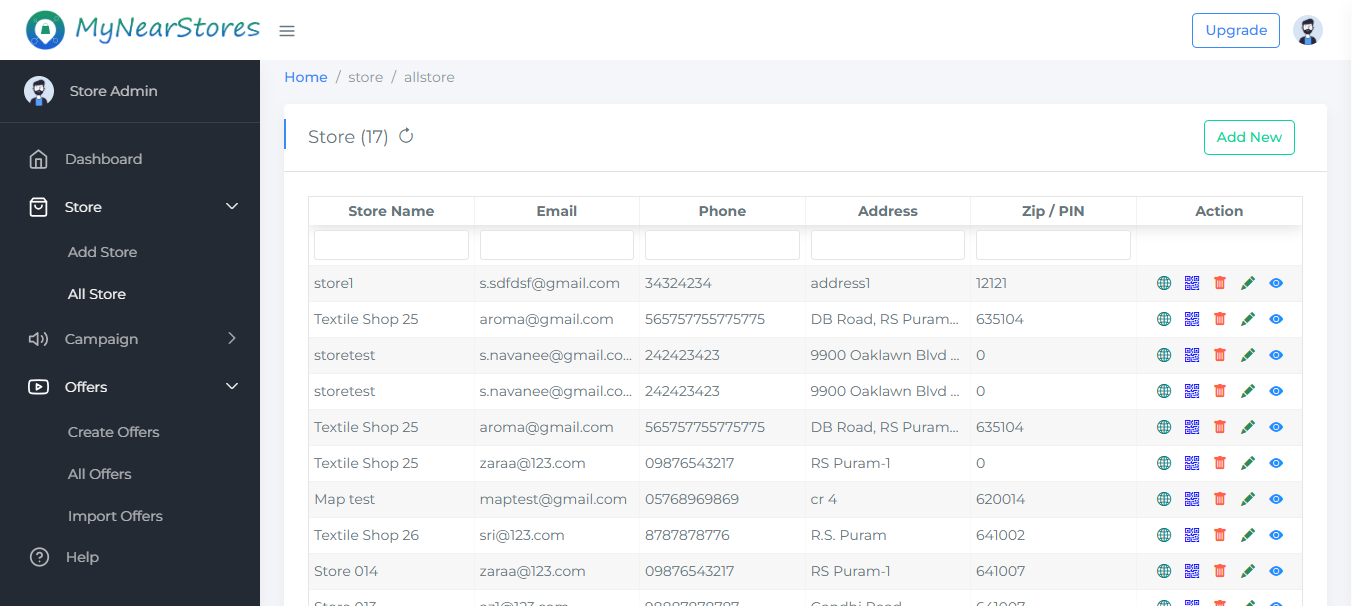
- Step 1: Click the "All Stores" tab.
- Step 2: This section displays a list of all created stores, including their details.
- Step 3: You can typically view, edit, and delete store entries from this section.
2. Campaign Management
- Step 1: Click the "Campaign" option in the main menu.
- Step 2: You will see two sections: "Add Campaign" and "All Campaigns."
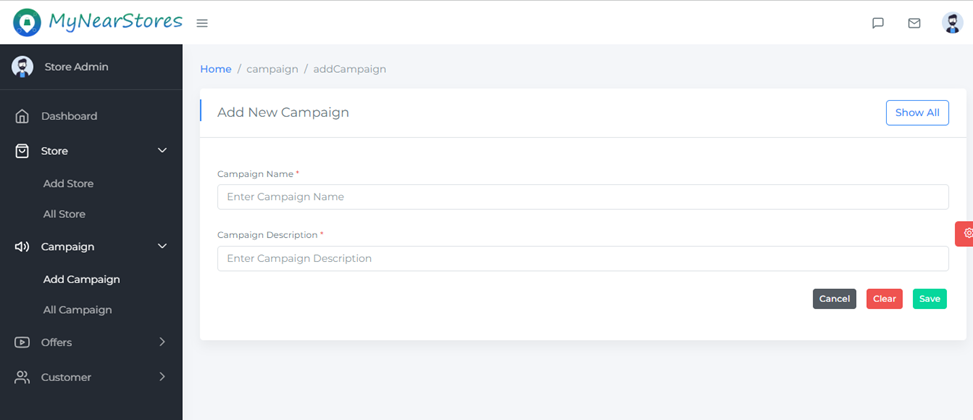
2.1. Add Campaign
- Step 1: Click the "Add Campaign" tab.
- Step 2: Enter the campaign name and description.
- Step 3: Click the "Save" button to store the campaign details.
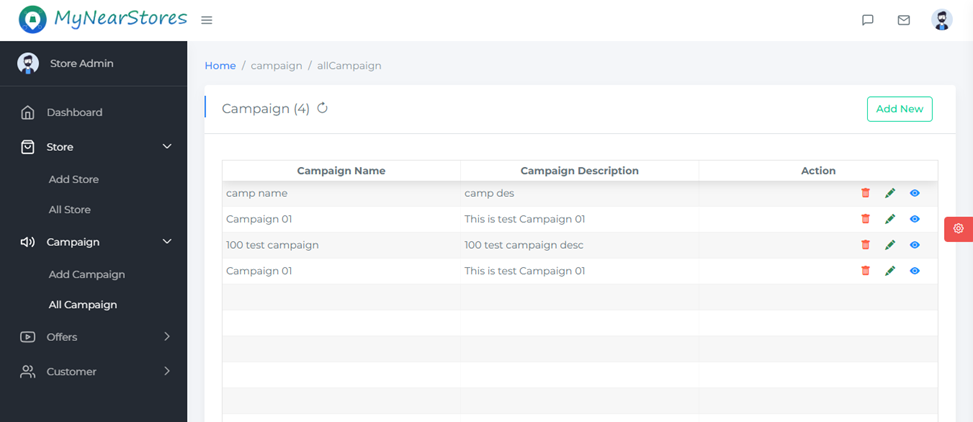
2.2. All Campaigns
- Step 1: Click the "All Campaigns" tab.
- Step 2: This section displays a list of all created campaigns, including their details.
- Step 3: You can typically view, edit, and delete campaign entries from this section.
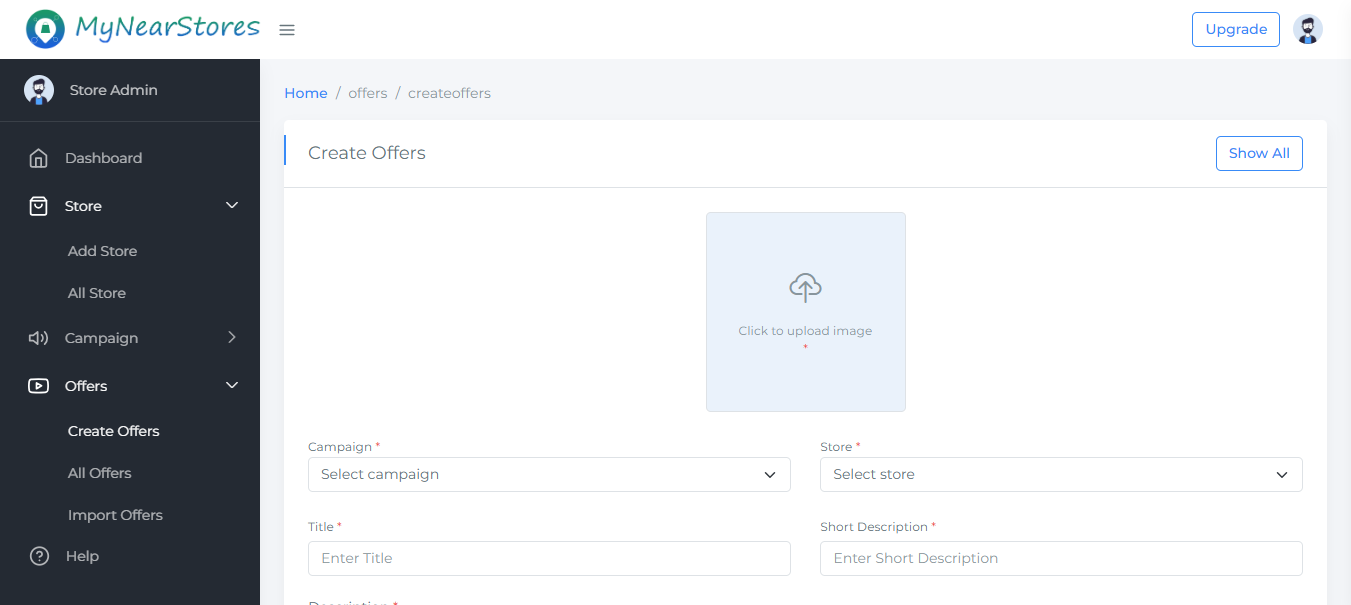
3. Offer Management – Click on the Offers option in the menu. It will have three sections: Create Offers, All Offers, and Import Offers.
3.1. Create Offers –
-
- In the Campaign field dropdown, select the required campaign from the list of created campaigns.
- In the Store field dropdown, select the required store from the list of created stores.
- Enter all the other required fields.
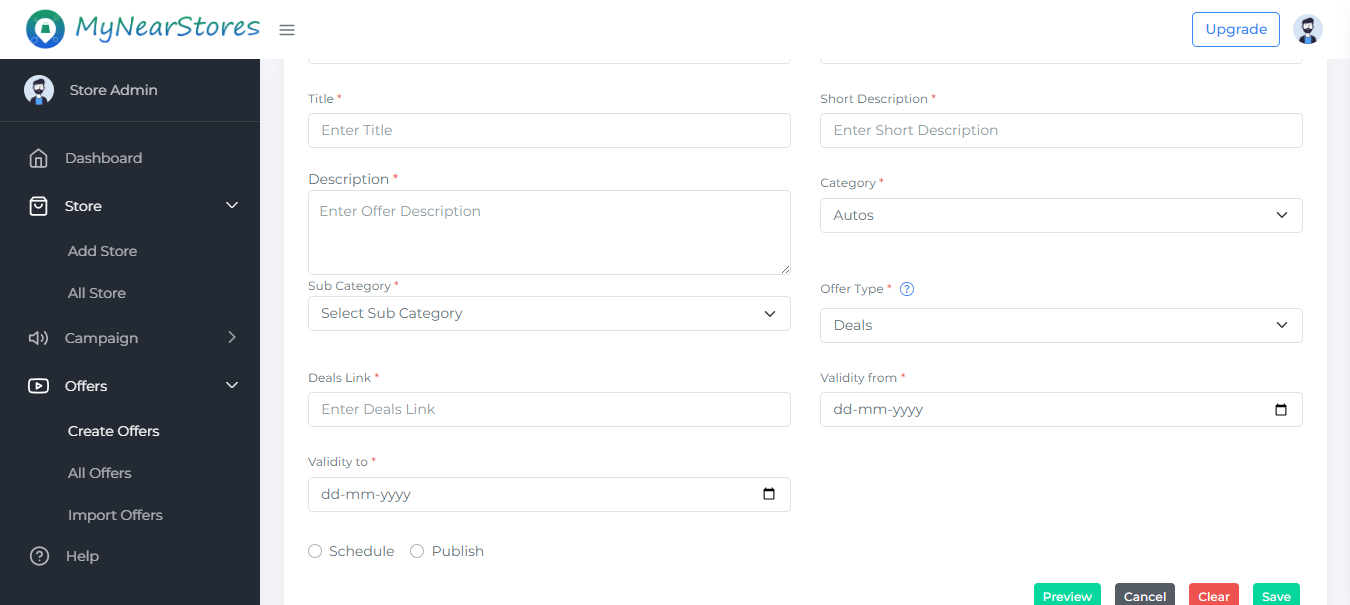
- In the Offer Type field, select one of the following options
3.1.1. Deals – Enter the deal link.
If your company has a deal link, enter it here.3.1.2. Coupon Code – Enter the coupon code value.
It must be integrated with your POS machine so that when scanned, the coupon is detected and applied automatically.3.1.3. Ad – Display the offer poster like an advertisement.
-
3.1.4. Buy one get one free - BOGO Deal .
-
3.1.5. Flat Discount - Fixed Price Off .
-
3.1.6. Percentage Discount -Save % Instantly.
-
- To publish the offer, select the Publish radio button. Otherwise, it will remain unpublished.
- on clicking schedule button, it show schedule date and time option, enter the required details and click save button, on tha schedule time offer will publish
- Click Save to store the offer.
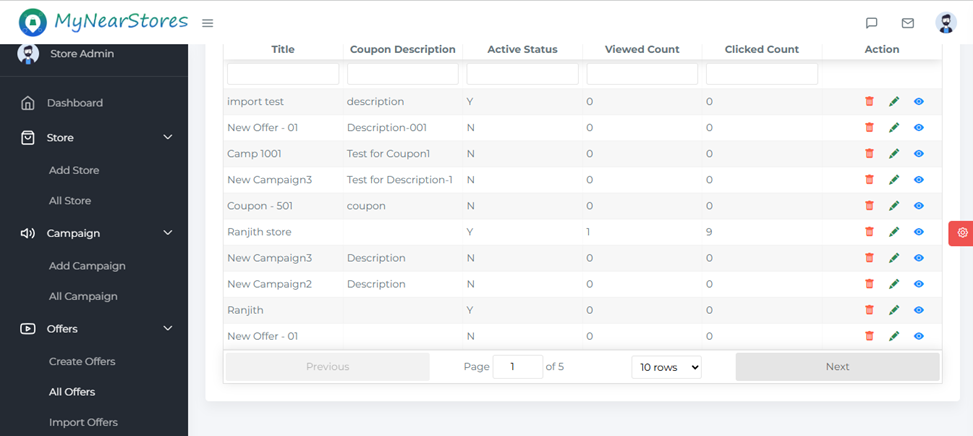
3.2. All Offers – This section displays all the created offers. You can view, edit, and delete offers.
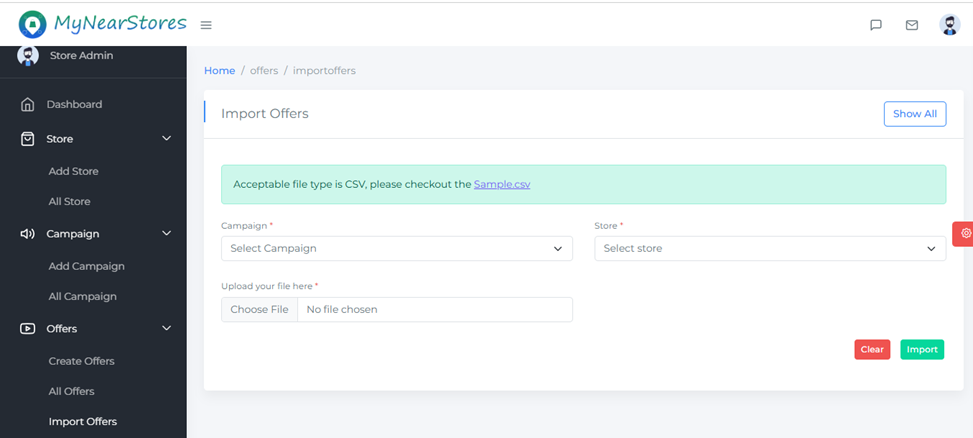
3.3. Import Offers –
-
- In the Campaign field dropdown, select the required campaign.
- In the Store field dropdown, select the required store.
- Download the sample.csv file, enter the required values in the file, and upload it.
- Click the Import button to upload the offers file.
Need help? Contact us at
support@mynearstores.com